1. Get the WSDL and XSD files of the webservice you need to implement.
Eg. For my webservice, I needed:
parlayx_terminal_location_notification_service_2_2.wsdl
parlayx_terminal_location_notification_interface_2_2.wsdl
parlayx_terminal_location_types_2_2.xsd
parlayx_common_types_2_1.xsd
2. Use WSIMPORT to generate the code stubs
Eg. command I used:
F:\EclipseWorkspaces\MANDPLBS\MAWS_Stubs>F:\Apache\jaxws-ri\bin\wsimport parlayx_terminal_location_notification_service_2_2.wsdl -keep -s src -d build\classes
I generated the source files in src and clases in build\classes so that I can use this directory as a project directory in Eclipse workspace
When you run it, you will see:
parsing WSDL...
generating code...
compiling code...
3. Amend the source files to implement your logic.
- Most of wsdl will generate an interface class
- You might want to implement that interface using a different class
- Eg. My interface class: TerminalLocationNotification
My implementation class TerminalLocationNotificationImpl
- If you change the package name, you will need to change the classname annotations
4. You can rename the classes but each object must be defined in ObjectFactory
Note: When I didn't comment out the classname wsgen (next step) created another package with jaxws
5. Generate the WSDL and artifacts using the following command:
>D:\Apache\jaxws-ri\bin\wsgen -cp ../build/classes -r ../WebContent/wsdl -s . -d ../build/classes -keep com..lbs.server.TerminalLocationNotificationImpl -wsdl
-r to generate WSDL to the right dir
-s to generate the source files to the right dir
-d to generate the class files to the right dir
6. Export as war and deploy on app server.
Tuesday, May 26, 2009

Monday, May 25, 2009
Thursday, May 21, 2009
Changing Glassfish default ports
By default, Glassfish will run on port 8080 (HTTP), 8181 (HTTPS). To change the ports, you can
1. Change setup.xml (if you have not created the domain)
2. Change domain.xml (if you have created the domain). This file is found in glassfish/domains/domain1/config/domain.xml
Look for the following line:
And change 8080 to your new port.
1. Change setup.xml (if you have not created the domain)
2. Change domain.xml (if you have created the domain). This file is found in glassfish/domains/domain1/config/domain.xml
Look for the following line:
And change 8080 to your new port.
Installing Glassfish on AIX
At this point in time, V3 is not available on AIX, so I will be using 2.1
1. Install JDK 1.5 or 1.6. You can download this from IBM AIX website.
2. Download Glassfish bundle from here. For AIX, downloaded glassfish-installer-v2.1-b60e-aix.jar size (61M). Note: ml stands for multi-language
3. Run the following command
% java -Xmx256m -jar glassfish-installer-v2.1-b60e-aix.jar
This command will unbundle GlassFish and create a new directory structure rooted under a directory named 'glassfish'.
4. CD to the glassfish subdirectory.
% cd glassfish
5. Set the execute permission for the Ant binaries that are included with the GlassFish bundle.
% chmod -R +x lib/ant/bin
% lib/ant/bin/ant -f setup.xml
6. On AIX, you may run into the following error:
create.domain:
[exec] Using port 4848 for Admin.
[exec] Using port 8080 for HTTP Instance.
[exec] Using port 7676 for JMS.
[exec] Using port 3700 for IIOP.
[exec] Using port 8181 for HTTP_SSL.
[exec] Using default port 3820 for IIOP_SSL.
[exec] Using default port 3920 for IIOP_MUTUALAUTH.
[exec] Using default port 8686 for JMX_ADMIN.
[exec] Domain being created with profile:developer, as specified by variable AS_ADMIN_PROFILE in configuration file.
[exec] ------ Using Profile [developer] to create the domain ------
[exec] XML processing for profile: Base document [/home/affinium7/mas/glassfish/lib/install/templates/default-domain.xml.template]. Profile name
property [domain.xml.style-sheets].
[exec] Security Store uses: JKS
[exec] File {0} not found.
[exec] CLI130 Could not create domain, domain1
BUILD FAILED
/home/affinium7/mas/glassfish/setup.xml:177: The following error occurred while executing this line:
/home/affinium7/mas/glassfish/setup.xml:607: exec returned: 1
Total time: 53 seconds
7. If you get the above error, it means .asadmintruststore was not created during installation and you will need to generate a new key. For full discussion on this, visit this post.
8. Run the following commmand to solve the problem:
keytool -genkey -keyalg RSA -keystore ~/.asadmintruststore -alias junk
9. Your actions will be as follows:
mclaren> keytool -genkey -keyalg RSA -keystore ~/.asadmintruststore -alias junk
Enter keystore password:
Re-enter new password:
What is your first and last name?
[Unknown]: XXX
What is the name of your organizational unit?
[Unknown]: Consumer Marketing
What is the name of your organization?
[Unknown]: XXX
What is the name of your City or Locality?
[Unknown]: Singapore
What is the name of your State or Province?
[Unknown]: Singapore
What is the two-letter country code for this unit?
[Unknown]: SG
Is CN=XXX, OU=Consumer Marketing, O=XXX, L=Singapore, ST=Singapore, C=SG correct? (type "yes" or "no")
[no]: yes
Enter key password for:
(RETURN if same as keystore password):
mclaren>
10. Once that is done, re-run the setup and your BUILD should be successful:
create.domain:
[exec] Using port 4848 for Admin.
[exec] Using port 8080 for HTTP Instance.
[exec] Using port 7676 for JMS.
[exec] Using port 3700 for IIOP.
[exec] Using port 8181 for HTTP_SSL.
[exec] Using default port 3820 for IIOP_SSL.
[exec] Using default port 3920 for IIOP_MUTUALAUTH.
[exec] Using default port 8686 for JMX_ADMIN.
[exec] Domain being created with profile:developer, as specified by variable AS_ADMIN_PROFILE in configuration file.
[exec] ------ Using Profile [developer] to create the domain ------
[exec] XML processing for profile: Base document [/home/affinium7/mas/glassfish/lib/install/templates/default-domain.xml.template]. Profile name [developer]. Processing property [domain.xml.style-sheets].
[exec] Security Store uses: JKS
[exec] Domain domain1 created.
[exec] Login information relevant to admin user name [admin] for this domain [domain1] stored at [/home/affinium7/.asadminpass] successfully.
[exec] Make sure that this file remains protected. Information stored in this file will be used by asadmin commands to manage this domain.
[delete] Deleting: /home/affinium7/mas/glassfish/passfile
BUILD SUCCESSFUL
Total time: 36 seconds
11. To start the app server:
cd glassfish/bin
asadmin start-domain
Domain domain1 is ready to receive client requests. Additional services are being started in background.
Domain [domain1] is running [Sun GlassFish Enterprise Server v2.1 (9.1.1) (build b60e-fcs)] with its configuration and logs at: [/home/affinium7/mas/glassfish/domains].
Admin Console is available at [http://localhost:4848].
Use the same port [4848] for "asadmin" commands.
User web applications are available at these URLs:
[http://localhost:8080 https://localhost:8181 ].
Following web-contexts are available:
[/web1 /__wstx-services HelloWorldService ].
Standard JMX Clients (like JConsole) can connect to JMXServiceURL:
[service:jmx:rmi:///jndi/rmi://mclaren:8686/jmxrmi] for domain management purposes.
Domain listens on at least following ports for connections:
[8080 8181 4848 3700 3820 3920 8686 ].
Domain does not support application server clusters and other standalone instances.
12. The default ports are:
admin port: 4848
app port: 8080
13. The default login to the admin server is
User: admin
Password: adminamin
Here's another good link that documents the installation/configuration of Glassfish. Click here.
1. Install JDK 1.5 or 1.6. You can download this from IBM AIX website.
2. Download Glassfish bundle from here. For AIX, downloaded glassfish-installer-v2.1-b60e-aix.jar size (61M). Note: ml stands for multi-language
3. Run the following command
% java -Xmx256m -jar glassfish-installer-v2.1-b60e-aix.jar
This command will unbundle GlassFish and create a new directory structure rooted under a directory named 'glassfish'.
4. CD to the glassfish subdirectory.
% cd glassfish
5. Set the execute permission for the Ant binaries that are included with the GlassFish bundle.
% chmod -R +x lib/ant/bin
% lib/ant/bin/ant -f setup.xml
6. On AIX, you may run into the following error:
create.domain:
[exec] Using port 4848 for Admin.
[exec] Using port 8080 for HTTP Instance.
[exec] Using port 7676 for JMS.
[exec] Using port 3700 for IIOP.
[exec] Using port 8181 for HTTP_SSL.
[exec] Using default port 3820 for IIOP_SSL.
[exec] Using default port 3920 for IIOP_MUTUALAUTH.
[exec] Using default port 8686 for JMX_ADMIN.
[exec] Domain being created with profile:developer, as specified by variable AS_ADMIN_PROFILE in configuration file.
[exec] ------ Using Profile [developer] to create the domain ------
[exec] XML processing for profile: Base document [/home/affinium7/mas/glassfish/lib/install/templates/default-domain.xml.template]. Profile name
property [domain.xml.style-sheets].
[exec] Security Store uses: JKS
[exec] File {0} not found.
[exec] CLI130 Could not create domain, domain1
BUILD FAILED
/home/affinium7/mas/glassfish/setup.xml:177: The following error occurred while executing this line:
/home/affinium7/mas/glassfish/setup.xml:607: exec returned: 1
Total time: 53 seconds
7. If you get the above error, it means .asadmintruststore was not created during installation and you will need to generate a new key. For full discussion on this, visit this post.
8. Run the following commmand to solve the problem:
keytool -genkey -keyalg RSA -keystore ~/.asadmintruststore -alias junk
9. Your actions will be as follows:
mclaren> keytool -genkey -keyalg RSA -keystore ~/.asadmintruststore -alias junk
Enter keystore password:
Re-enter new password:
What is your first and last name?
[Unknown]: XXX
What is the name of your organizational unit?
[Unknown]: Consumer Marketing
What is the name of your organization?
[Unknown]: XXX
What is the name of your City or Locality?
[Unknown]: Singapore
What is the name of your State or Province?
[Unknown]: Singapore
What is the two-letter country code for this unit?
[Unknown]: SG
Is CN=XXX, OU=Consumer Marketing, O=XXX, L=Singapore, ST=Singapore, C=SG correct? (type "yes" or "no")
[no]: yes
Enter key password for
(RETURN if same as keystore password):
mclaren>
10. Once that is done, re-run the setup and your BUILD should be successful:
create.domain:
[exec] Using port 4848 for Admin.
[exec] Using port 8080 for HTTP Instance.
[exec] Using port 7676 for JMS.
[exec] Using port 3700 for IIOP.
[exec] Using port 8181 for HTTP_SSL.
[exec] Using default port 3820 for IIOP_SSL.
[exec] Using default port 3920 for IIOP_MUTUALAUTH.
[exec] Using default port 8686 for JMX_ADMIN.
[exec] Domain being created with profile:developer, as specified by variable AS_ADMIN_PROFILE in configuration file.
[exec] ------ Using Profile [developer] to create the domain ------
[exec] XML processing for profile: Base document [/home/affinium7/mas/glassfish/lib/install/templates/default-domain.xml.template]. Profile name [developer]. Processing property [domain.xml.style-sheets].
[exec] Security Store uses: JKS
[exec] Domain domain1 created.
[exec] Login information relevant to admin user name [admin] for this domain [domain1] stored at [/home/affinium7/.asadminpass] successfully.
[exec] Make sure that this file remains protected. Information stored in this file will be used by asadmin commands to manage this domain.
[delete] Deleting: /home/affinium7/mas/glassfish/passfile
BUILD SUCCESSFUL
Total time: 36 seconds
11. To start the app server:
cd glassfish/bin
asadmin start-domain
Domain domain1 is ready to receive client requests. Additional services are being started in background.
Domain [domain1] is running [Sun GlassFish Enterprise Server v2.1 (9.1.1) (build b60e-fcs)] with its configuration and logs at: [/home/affinium7/mas/glassfish/domains].
Admin Console is available at [http://localhost:4848].
Use the same port [4848] for "asadmin" commands.
User web applications are available at these URLs:
[http://localhost:8080 https://localhost:8181 ].
Following web-contexts are available:
[/web1 /__wstx-services HelloWorldService ].
Standard JMX Clients (like JConsole) can connect to JMXServiceURL:
[service:jmx:rmi:///jndi/rmi://mclaren:8686/jmxrmi] for domain management purposes.
Domain listens on at least following ports for connections:
[8080 8181 4848 3700 3820 3920 8686 ].
Domain does not support application server clusters and other standalone instances.
12. The default ports are:
admin port: 4848
app port: 8080
13. The default login to the admin server is
User: admin
Password: adminamin
Here's another good link that documents the installation/configuration of Glassfish. Click here.
Tuesday, May 19, 2009
Creating HelloWorldClient using WTP
1. Create a new project for the HelloWorld client (an ordinary Java project is sufficient)
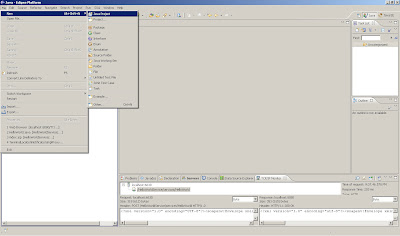
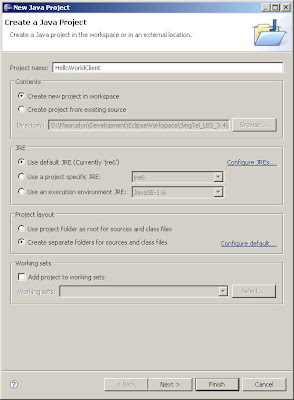
2. Create a Web Service Client
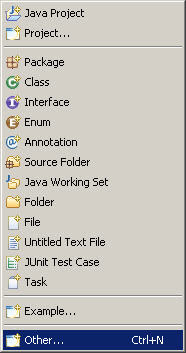
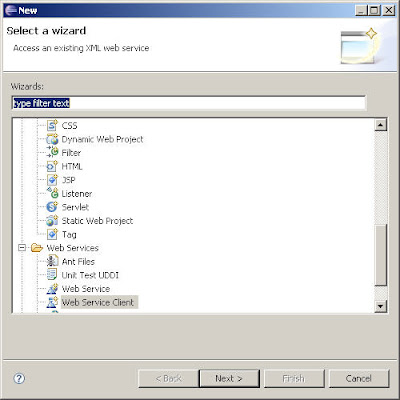
3. Click on browse and choose the WSDL location
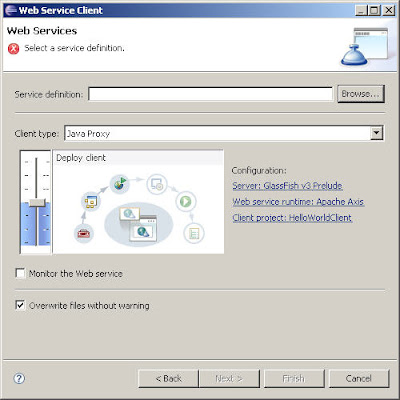
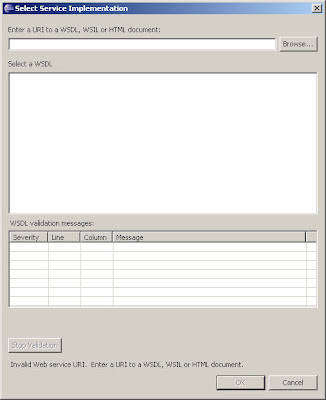
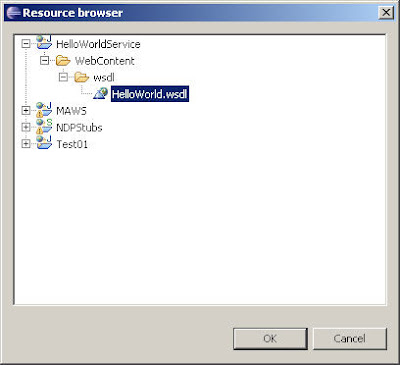
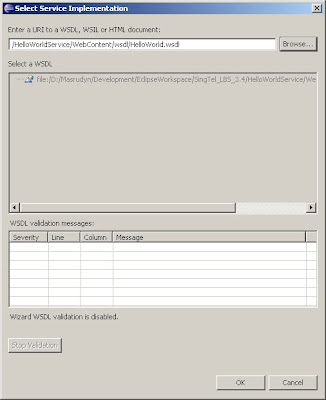
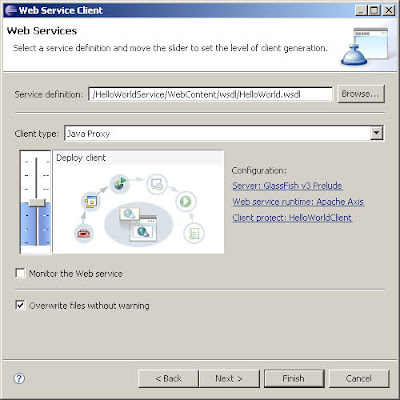
4. Increase the settings to "Test Client"
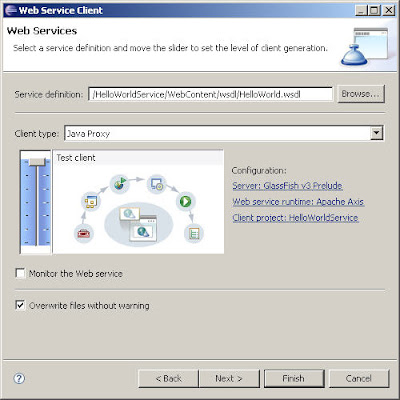
5. Choose Default settings and Click Next
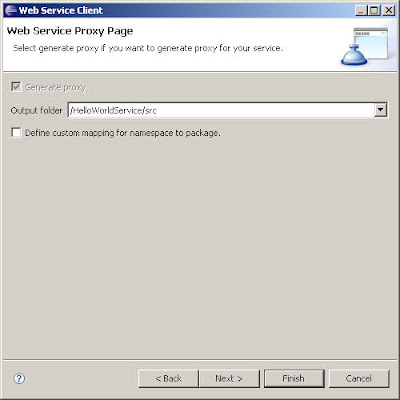
6. Choose Default settings and Click Finish
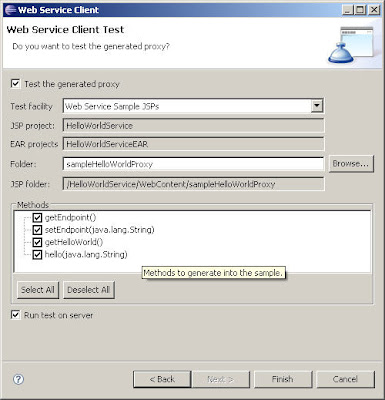
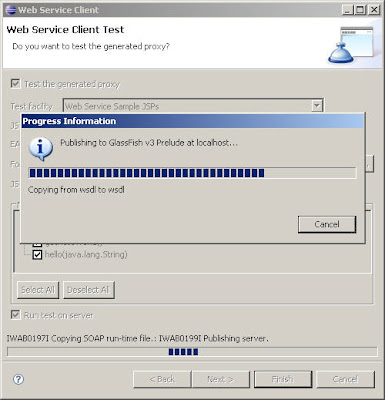
7. Eclipse will publish a test client to Glassfish
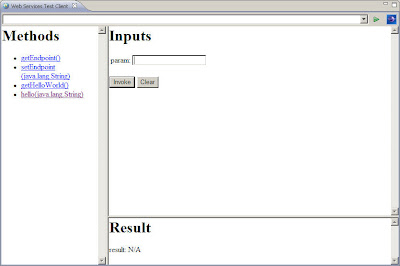
8. A test page will appear
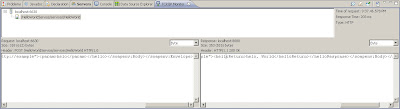
9. Check TCP/IP Monitor window to see if the SOAP calls are ok


2. Create a Web Service Client


3. Click on browse and choose the WSDL location


4. Increase the settings to "Test Client"

5. Choose Default settings and Click Next

6. Choose Default settings and Click Finish

7. Eclipse will publish a test client to Glassfish

8. A test page will appear

9. Check TCP/IP Monitor window to see if the SOAP calls are ok

Configuring Oracle datasource on Glassfish
1. Stop Glassfish server and copy the database driver jar to /lib. (I am using ojdbc14.jar file)
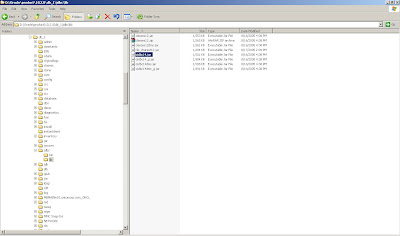
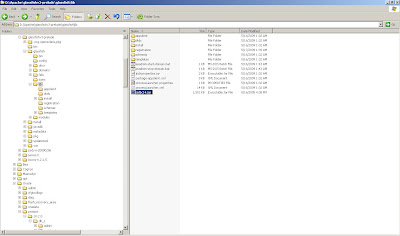
2. Once copied to the lib dir, start Glassfish again. Reload the admin console and login.

3. Expand the Resources menu item and then the JDBC menu item in the menu to the left. The JDBC menu contains two submenus, being JDBC Resources and Connection Pools. The JDBC Resource is exposed to (web) applications through JNDI. In order to create a JDBC Resource, we’ll need a Connection Pool first. To define an Oracle Connection Pool, click on connection Pools in the menu to the left.
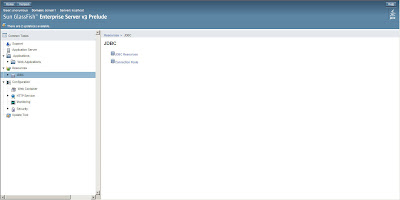
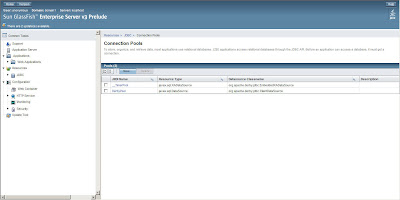
4. Next, click the New button to enter the Connection Pool wizard. The first thing to do is specify the Connection Pool Name, Resource Type and Database Vendor. The Resource Type should be javax.sql.ConnectionPoolDatasource. Select the database vendor from the select box. Since we are creating an Oracle connection pool, select Oracle and click the Next button.
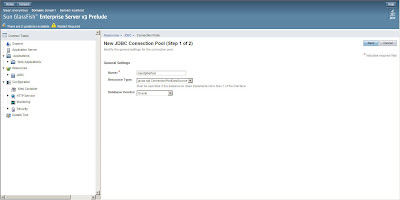
5. In the General Settings section, make sure the Datasource Classname is set to either oracle.jdbc.pool.OracleConnectionPoolDataSource (which is the default) or oracle.jdbc.xa.client.OracleXADataSource. Set all the other parameters as you like and scroll down to the Additional Properties section.
In this section, three or four properties are needed. All others can be discarded. The three needed ones are User, Password and URL. The fourth, optional, property is xa-driver-does-not-support-non-tx-operations. This property is only needed if both non-XA and XA connections are retrieved from the same connection pool.
So, specify the username, password and url. The last one is of the form jdbc:oracle:thin:@:: where usually is 1521. E.g. jdbc:oracle:thin:@pagani_s1:1521:ORCL
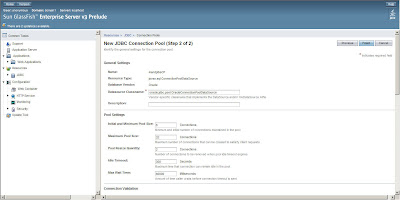
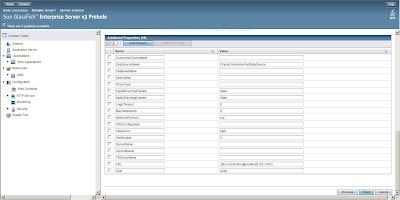
6. After specifying these properties, click Finish. This will bring you back to the connection Pool overview. Click on the Connection Pool name you just created and then the Ping button to see if the connection can be established.
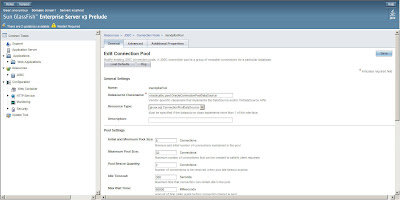
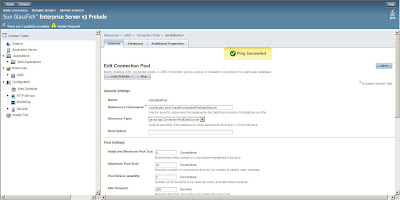
7. If you see Ping Succeeded the connection pool has been setup correctly.
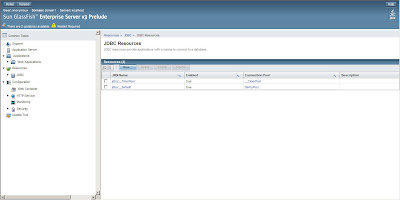
8. Now click on the JDBC Resources menu item in the menu to the left and then on the New button to create a new JDBC Resource.
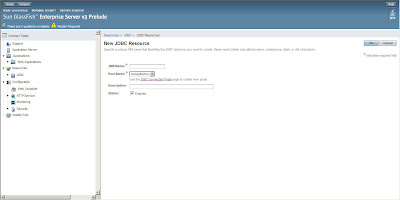
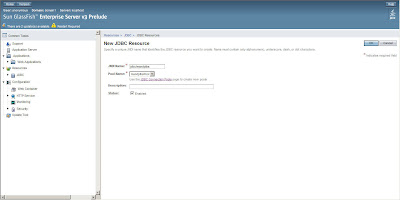
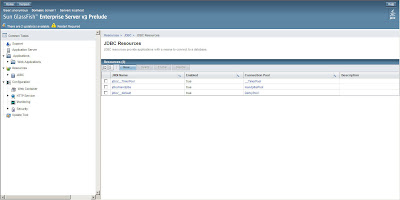
9.Enter the name for the JDBC Resource and bear in mind that JNDI JDBC datasource names usually start with "jdbc/" so enter a name like "jdbc/mandplbs" or so. Also select the Connection Pool name you just created and successfully pinged from the select box. Hit the OK button and you’re done.


2. Once copied to the lib dir, start Glassfish again. Reload the admin console and login.

3. Expand the Resources menu item and then the JDBC menu item in the menu to the left. The JDBC menu contains two submenus, being JDBC Resources and Connection Pools. The JDBC Resource is exposed to (web) applications through JNDI. In order to create a JDBC Resource, we’ll need a Connection Pool first. To define an Oracle Connection Pool, click on connection Pools in the menu to the left.


4. Next, click the New button to enter the Connection Pool wizard. The first thing to do is specify the Connection Pool Name, Resource Type and Database Vendor. The Resource Type should be javax.sql.ConnectionPoolDatasource. Select the database vendor from the select box. Since we are creating an Oracle connection pool, select Oracle and click the Next button.

5. In the General Settings section, make sure the Datasource Classname is set to either oracle.jdbc.pool.OracleConnectionPoolDataSource (which is the default) or oracle.jdbc.xa.client.OracleXADataSource. Set all the other parameters as you like and scroll down to the Additional Properties section.
In this section, three or four properties are needed. All others can be discarded. The three needed ones are User, Password and URL. The fourth, optional, property is xa-driver-does-not-support-non-tx-operations. This property is only needed if both non-XA and XA connections are retrieved from the same connection pool.
So, specify the username, password and url. The last one is of the form jdbc:oracle:thin:@


6. After specifying these properties, click Finish. This will bring you back to the connection Pool overview. Click on the Connection Pool name you just created and then the Ping button to see if the connection can be established.

7. If you see Ping Succeeded the connection pool has been setup correctly.

8. Now click on the JDBC Resources menu item in the menu to the left and then on the New button to create a new JDBC Resource.


9.Enter the name for the JDBC Resource and bear in mind that JNDI JDBC datasource names usually start with "jdbc/" so enter a name like "jdbc/mandplbs" or so. Also select the Connection Pool name you just created and successfully pinged from the select box. Hit the OK button and you’re done.


Monday, May 18, 2009
Configuring Apache CXF on Eclipse
1. Install Apache CXF. If you haven't, follow the steps here.
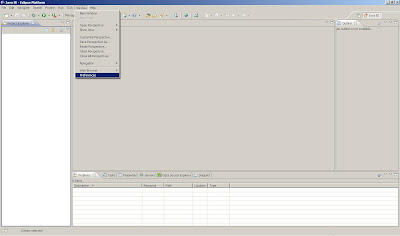
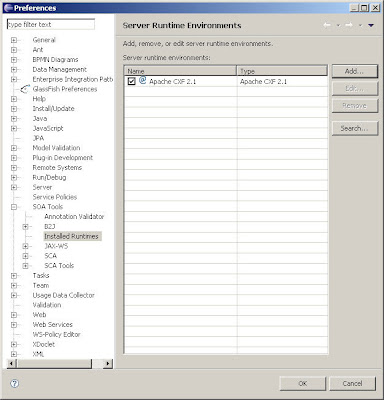
2. In Eclipse, go to Windows -> Preferences
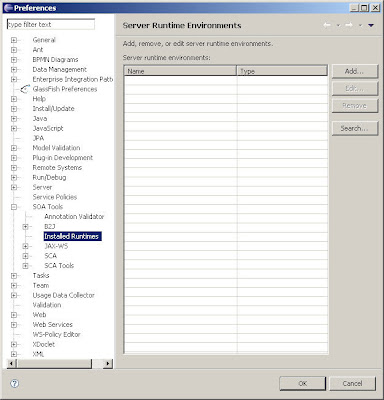
3. Go to SOA Tools -> Installed Runtimes
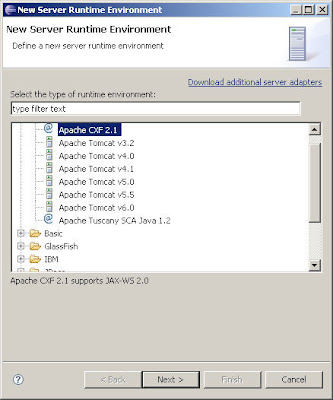
4. Select Apache CXF 2.1
5. Set the appropriate paths to your Apache CXF install directory
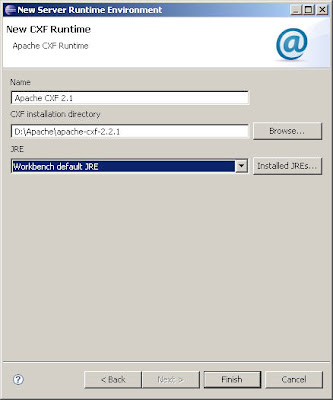
6. You will the Apache CXF Runtime added
2. In Eclipse, go to Windows -> Preferences

3. Go to SOA Tools -> Installed Runtimes

4. Select Apache CXF 2.1

5. Set the appropriate paths to your Apache CXF install directory

6. You will the Apache CXF Runtime added

Subscribe to:
Posts (Atom)